

Gemini was already good at coding but, thanks to Google releasing Gemini 3 yesterday, it’s now even better.
That capability isn’t only helpful for software engineers. Whether you’re a salesperson, project manager, teacher, small business owner, or something completely different, I’m certain there’s a way you can leverage Gemini to build something genuinely helpful.
Ideas for utility tools
Creating your own tool or micro-app for specific circumstances might be a better option than using documents or spreadsheets to bring things to life. Here are a few quick ideas, with example starter prompts you can try right away.
By the way, you can see all these examples in action here.
Pricing calculator for sales
Use case: Show a client how costs scale with volume or add-ons.
Example prompt:
Create an interactive pricing calculator for a software product using HTML, CSS, and JavaScript in a single file. It should have a slider for ‘Number of Users’. There are three tiers to the software - starter ($10), premium ($20) and pro ($5). For now, add a placeholder list of features for each tier. Each tier also should have a checkbox option for priority support ($100 extra). Update the ‘Total Monthly Cost’ dynamically as I move the slider. Make the design clean and modern.Decision matrix creator
Use case: Visualise your choice between potential suppliers or job candidates.
Example prompt:
Build an interactive Decision Matrix tool in HTML/JS. Let me add 3 options (e.g., Vendor A, Vendor B, Vendor C) and 3 criteria (e.g., Price, Speed, Quality). Let me assign a ‘Weight’ to each criteria. Calculate the weighted score automatically to show the winner.Meeting cost calculator
Use case: Discourage unnecessary meetings by showing the team what they cost.
Example prompt:
Write a ‘Meeting Cost Calculator’ in a single HTML file. Allow me to input ‘Number of Attendees’ and ‘Average Hourly Rate’. Show a ticking counter that displays how much money is being burned per second once I hit ‘Start Meeting’. Use a red font for the cost.Time zone checker
Use case: Schedule an inclusive time to meet with a remote team.
Example prompt:
Create a visual Time Zone overlap tool in HTML. Let me select 3 time zones (e.g., London, New York, Tokyo). Display a bar chart showing the working hours (9am-5pm) for each, highlighting the specific hours where all three overlap.Task focus timer
Use case: Improve your focus by customising a focus tool that works for you.
Example prompt:
Code a minimalist Pomodoro timer in a single HTML file. Set the timer for 25 minutes with a 5-minute break, but make those times editable. Include a sound notification (beep) when time is up and a visual progress circle that depletes as time goes on.How to create and share your micro-apps or utility tools
To create:
- Choose ‘Thinking’ from the model dropdown on the right
- Click ‘Tools’
- Choose ‘Canvas’
- Enter your prompt and submit
- [Optional] Prompt Gemini further to make edits

To share:
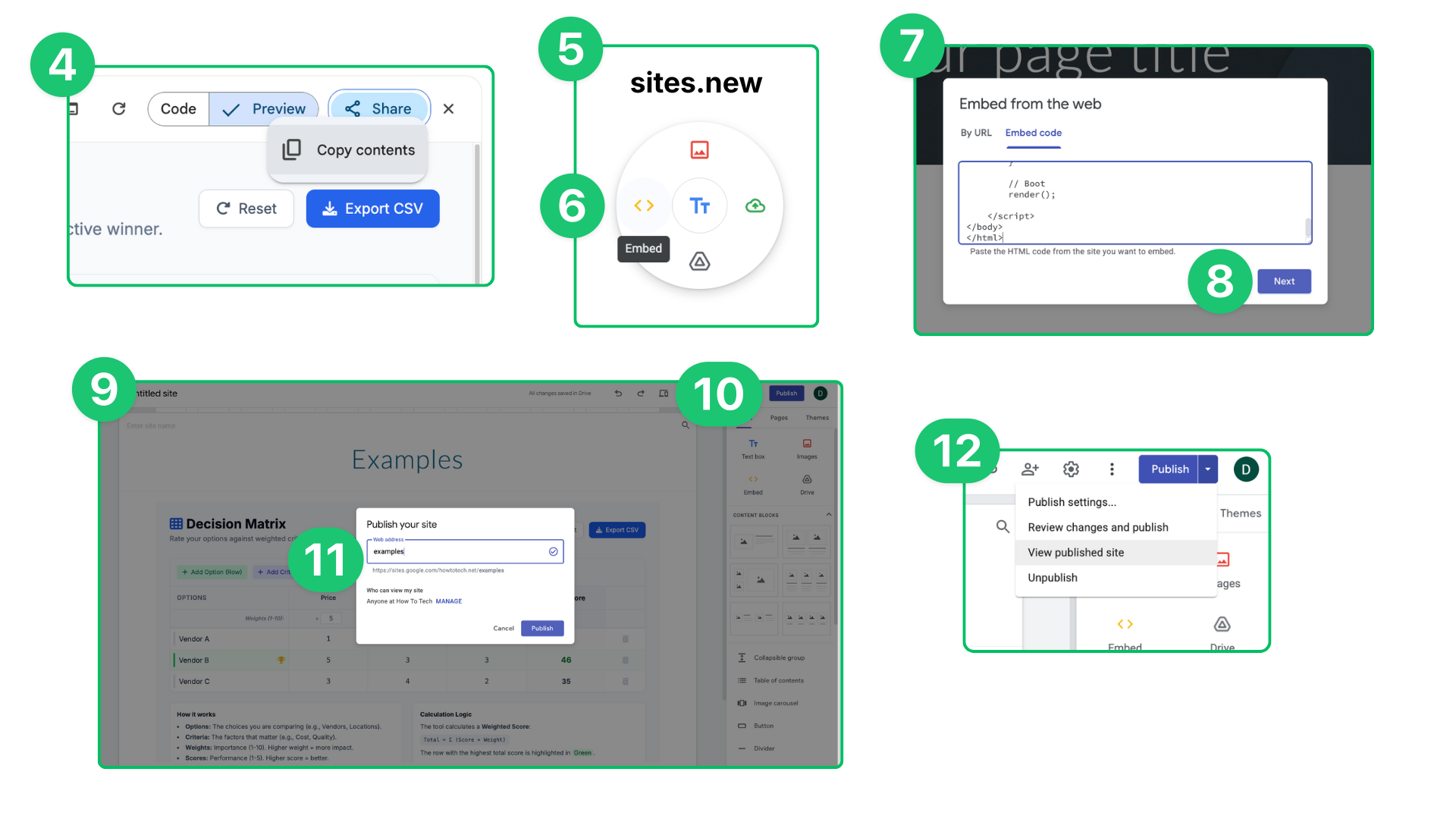
- Click ‘Share’ and then ‘Copy contents’
- Create a new Google Site by going to sites.new
- Double click in the white area and choose ‘Embed’
- Choose ‘Embed code’ and paste (ctrl+v) into the box
- Click insert, then resize the app as required
- [Optional] Make any edits to the site (e.g. change the title, add pages, etc)
- Click ‘Publish’ (on the top right)
- Choose a web address, and click ‘Publish’
- Click the arrow next to ‘Publish’ and choose ‘View published site’ to see it and share the web address with others
Sharing should be easier than this - I really hope Google adds a better sharing option for Google Workspace accounts in future!
Was this helpful? Tap the like button below to let me know! Excited about what’s possible and want to share with others? Forward this email or leave a comment below with your ideas.
See you next week.
Dean