

Ever needed to copy and paste from one tab to another? Or wanted to watch a video whilst making notes?
Viewing two webpages at once typically means you have to move a tab into a new window, resize both windows manually and then drag to get them side-by-side.
This brand new feature means that whether you’re trying to copy code between tabs, reference a Google Doc while drafting an email, or take notes while in a video call, it’s now a whole lot easier.
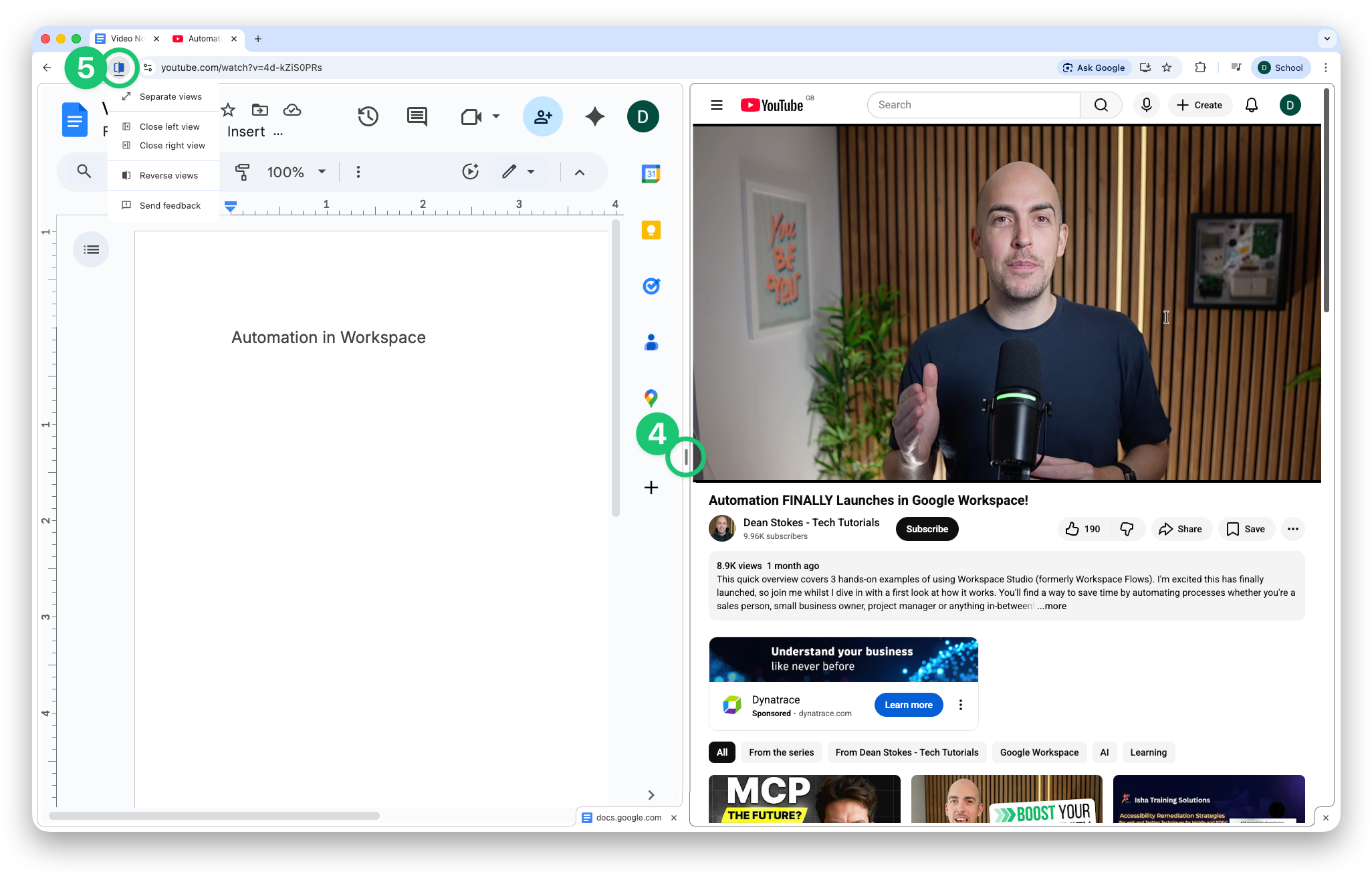
Split view allows you to quickly tile two tabs within a single browser window, keeping everything neat and tidy.
How to use split view in Google Chrome
Here’s how it works:
- Right click on the first tab
- Click ‘Add tab to new split view’
- On the right-hand side, in the list that appears, choose the tab you want to view alongside the other

- [Optional] Resize the split (just click and drag the dividing line)
- [Optional] Swap the sides or separate them back out by clicking the button next to the omnibox
Any questions, or something you’d like to see covered in a future newsletter? Click reply or let me know in the comments.
See you in the next one!
Dean